
 system
d1c10ca6d7
system
d1c10ca6d7
|
8 months ago | |
|---|---|---|
| .. | ||
| assets | 8 months ago | |
| kuberay-operator | 8 months ago | |
| Makefile | 8 months ago | |
| OWNERS | 8 months ago | |
| README.md | 8 months ago | |
| UPGRADE.md | 8 months ago | |
| raycluster_example.yaml | 8 months ago | |
| test.sh | 8 months ago | |
README.md
Credit: This manifest refers a lot to the engineering blog "Building a Machine Learning Platform with Kubeflow and Ray on Google Kubernetes Engine" from Google Cloud.
Ray
Ray is a unified framework for scaling AI and Python applications. Ray consists of a core distributed runtime and a toolkit of libraries (Ray AIR) for simplifying ML compute.
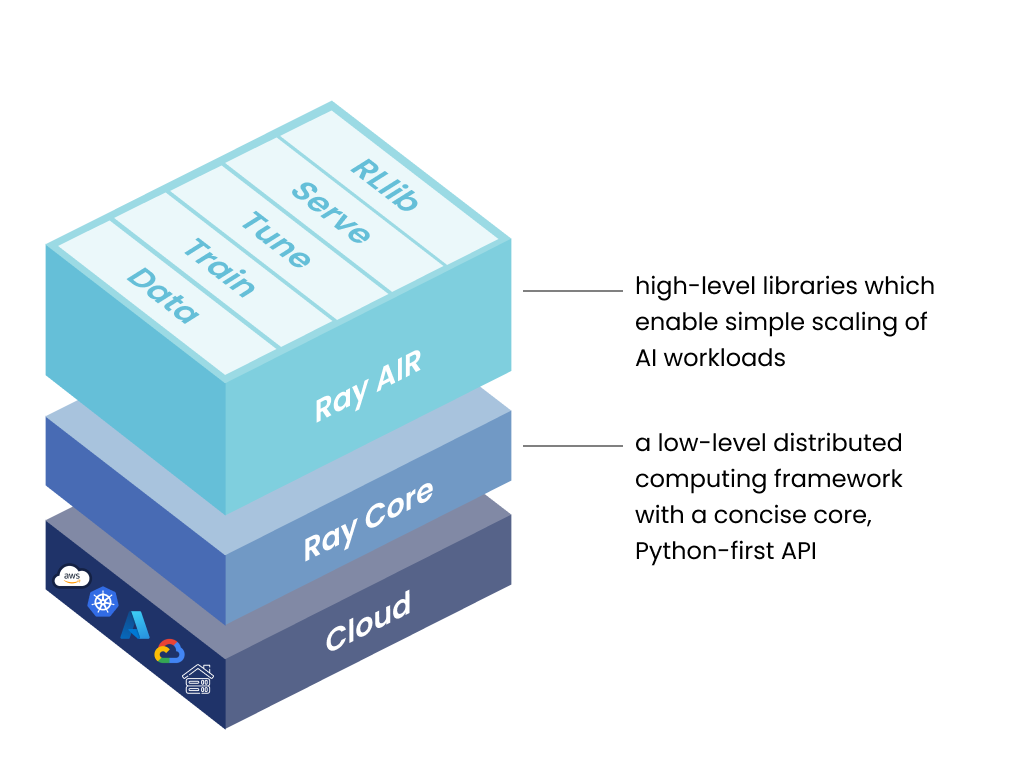
KubeRay
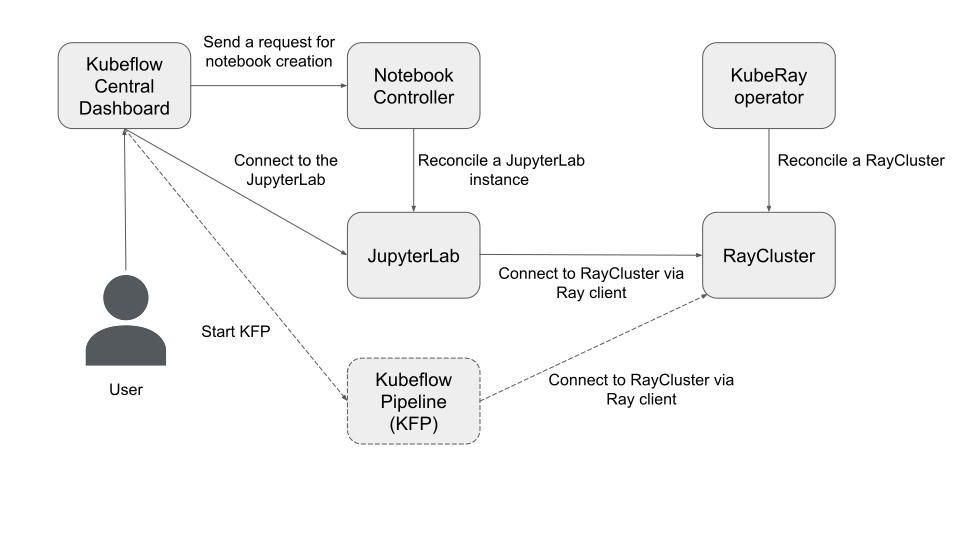
KubeRay is an open-source Kubernetes operator for Ray. It provides several CRDs to simplify managing Ray clusters on Kubernetes. We will integrate Kubeflow and KubeRay in this document.
Requirements
-
Dependencies
kustomize: v5.4.3+ (Kubeflow manifest is sensitive tokustomizeversion.)Kubernetes: v1.32+
-
Computing resources:
- 16GB RAM
- 8 CPUs
Example
Step 1: Install Kubeflow
- This example installs Kubeflow with the master branch
- Install all Kubeflow official components and all common services using one command.
- If you do not want to install all components, you can comment out KNative, Katib, Tensorboards Controller, Tensorboard Web App, Training Operator, and KServe from example/kustomization.yaml.
Step 2: Install KubeRay operator
We never ever break Kubernetes standards and do not use the "default" namespace, but a proper one, in our case "kubeflow" for the ray operator.
# Install a KubeRay operator and custom resource definitions.
kustomize build kuberay-operator/overlays/kubeflow | kubectl apply --server-side -f -

# Check KubeRay operator
kubectl get pod -l app.kubernetes.io/component=kuberay-operator -n kubeflow
# NAME                                READY   STATUS    RESTARTS   AGE
# kuberay-operator-5b8cd69758-rkpvh   1/1     Running   0          6m23s
If you are creating a new namespace other than the kubeflow-user-example-com please follow below step otherwise skip the step.
Step 3: Create a namespace
# Create a namespace: example-"development"
kubectl create ns development

# Enable istio-injection for the namespace
kubectl label namespace development istio-injection=enabled

# After creating the namespace, You have to do below mentioned changes in raycluster_example.yaml file(Required changes are also mentioned as comments in yaml file itself)

# 01. Replace the namesapce of AuthorizationPolicy principal

    principals:
    - "cluster.local/ns/development/sa/default-editor"

# 02. Replace the namespace of node-ip-address of headGroupSpec and workerGroupSpec

    node-ip-address: $(hostname -I | tr -d ' ' | sed 's/\./-/g').raycluster-istio-headless-svc.development.svc.cluster.local
Step 4: Install RayCluster
# Create a RayCluster CR, and the KubeRay operator will reconcile a Ray cluster
# with 1 head Pod and 1 worker Pod.
# $MY_KUBEFLOW_USER_NAMESPACE is the namespace that has been created in the above step.
export MY_KUBEFLOW_USER_NAMESPACE=development
kubectl apply -f raycluster_example.yaml -n $MY_KUBEFLOW_USER_NAMESPACE

# Check RayCluster
kubectl get pod -l ray.io/cluster=kubeflow-raycluster -n $MY_KUBEFLOW_USER_NAMESPACE
# NAME                                           READY   STATUS    RESTARTS   AGE
# kubeflow-raycluster-head-p6dpk                 1/1     Running   0          70s
# kubeflow-raycluster-worker-small-group-l7j6c   1/1     Running   0          70s

#Check Raycluster headless service
kubectl get svc -n $MY_KUBEFLOW_USER_NAMESPACE
raycluster_example.yamlusesrayproject/ray:2.23.0-py311-cpuas its OCI image. Ray is very sensitive to the Python versions and Ray versions between the server (RayCluster) and client (JupyterLab) sides. This image uses:- Python 3.11
- Ray 2.23.0
Step 5: Forward the port of Istio's Ingress-Gateway
- Follow the instructions to forward the port of Istio's Ingress-Gateway and log in to Kubeflow Central Dashboard.
Step 6: Create a JupyterLab via Kubeflow Central Dashboard
- Click "Notebooks" icon in the left panel.
- Click "New Notebook"
- Select
kubeflownotebookswg/jupyter-scipy:v1.9.2as OCI image (or any other with the same python version) - Click "Launch"
- Click "CONNECT" to connect into the JupyterLab instance.
Step 7: Use Ray client in the JupyterLab to connect to the RayCluster
- As I mentioned in Step 3, Ray is very sensitive to the Python versions and Ray versions between the server (RayCluster) and client (JupyterLab) sides.
# Check Python version. The version's MAJOR and MINOR should match with RayCluster (i.e. Python 3.11.9) python --version # Python 3.11.9 pip install -U ray[default]==2.23.0 - Connect to RayCluster via Ray client.
# Open a new .ipynb page.

import ray
# For other namespaces use ray://${RAYCLUSTER_HEAD_SVC}.${NAMESPACE}.svc.cluster.local:${RAY_CLIENT_PORT}
# But we use of course our per namespace ray cluster to have multi-tenancy and
# We never ever use "default" as namespace since this would violate Kubernetes standards
ray.init(address="ray://kubeflow-raycluster-head-svc:10001")
print(ray.cluster_resources())
# {'node:10.244.0.41': 1.0, 'memory': 3000000000.0, 'node:10.244.0.40': 1.0, 'object_store_memory': 805386239.0, 'CPU': 2.0}

# Try Ray task
@ray.remote
def f(x):
    return x * x

futures = [f.remote(i) for i in range(4)]
print(ray.get(futures)) # [0, 1, 4, 9]

# Try Ray actor
@ray.remote
class Counter(object):
    def __init__(self):
        self.n = 0

    def increment(self):
        self.n += 1

    def read(self):
        return self.n

counters = [Counter.remote() for i in range(4)]
[c.increment.remote() for c in counters]
futures = [c.read.remote() for c in counters]
print(ray.get(futures)) # [1, 1, 1, 1]
Upgrading
See UPGRADE.md for more details.